How to Email Yourself Matomo Reports
MarketingNovember 10, 2026

Instructions
Matomo can automatically email you a recurring analytics report (daily, weekly, or monthly) so you do not need to log in and pull the numbers yourself. Follow the steps below to set one up. The whole process takes about two minutes.
Before you start: Log in to analytics.armymwr.com and make sure the correct website is selected in the site picker at the top left. Scheduled reports are created per website, so repeat these steps for each site you want a report from.
- Open Administration settings From any dashboard, click the gear icon in the top right corner of the page, next to the logout icon.
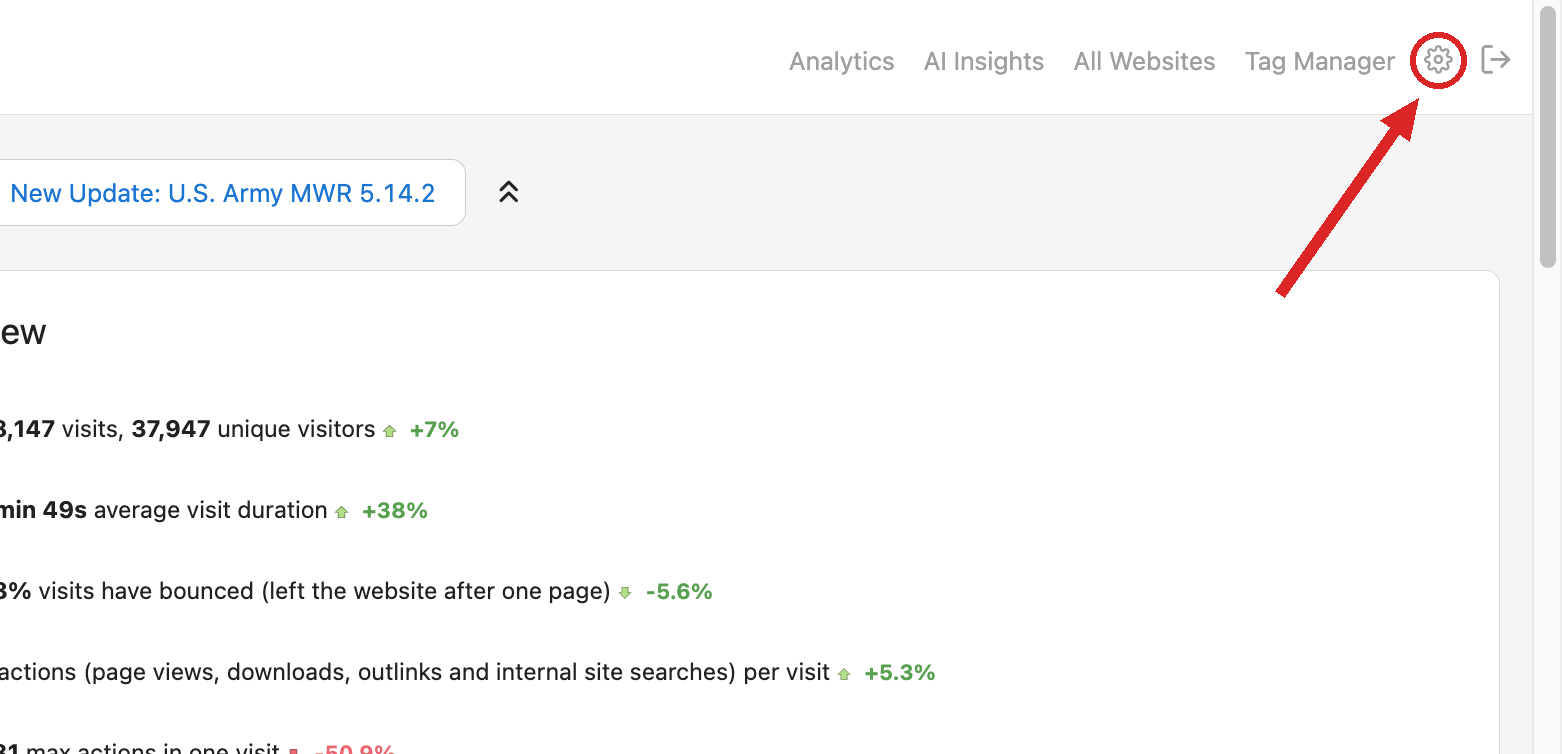
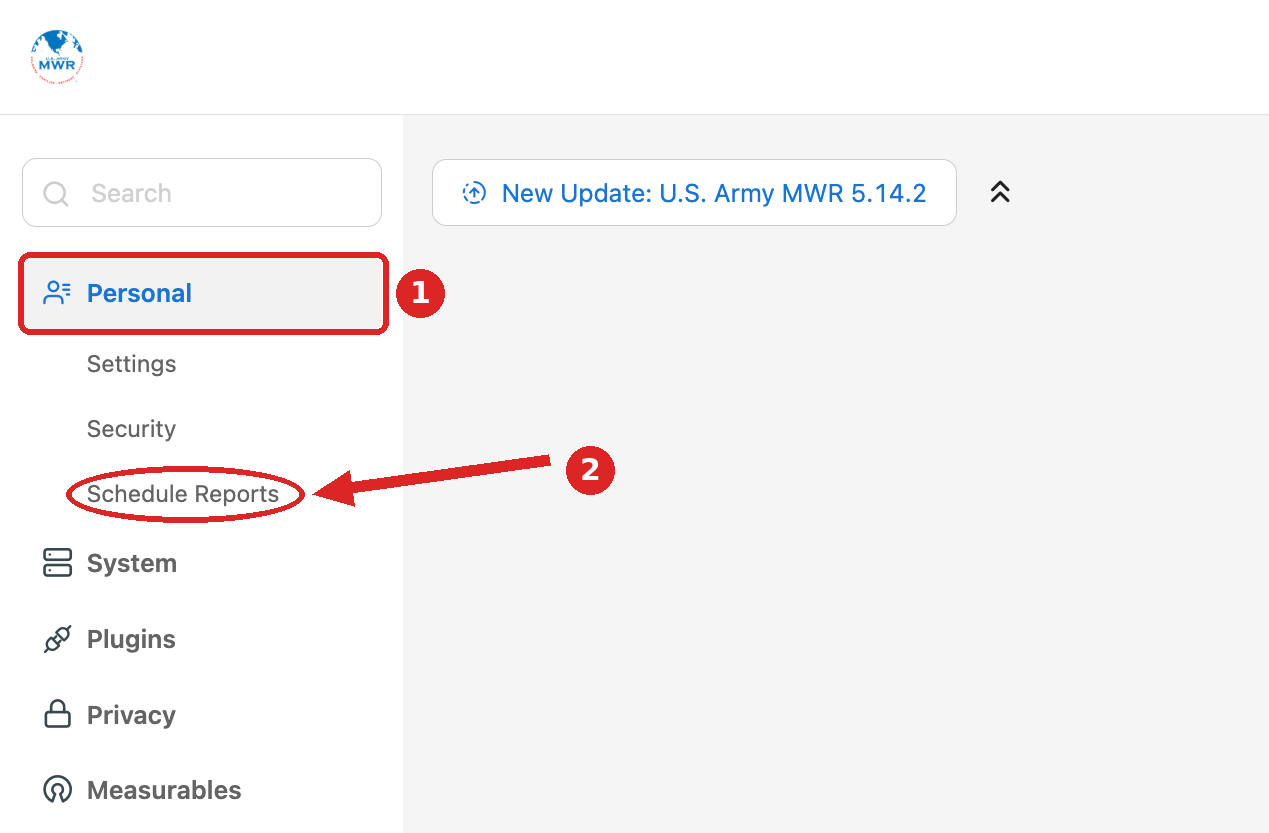
- Go to Personal > Schedule Reports In the left menu of the Administration area, click Personal (1) to expand it, then click Schedule Reports (2).
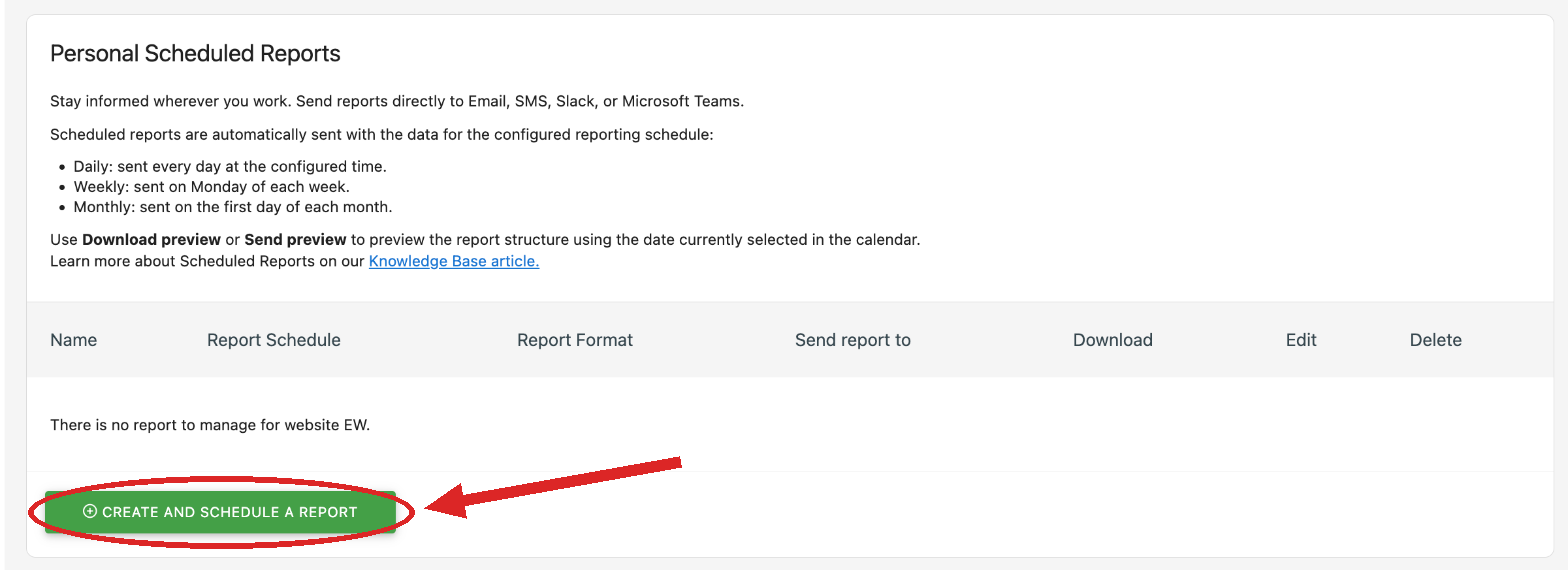
- Create a new report The Personal Scheduled Reports page lists any reports you already have. Click the green Create and Schedule a Report button at the bottom.
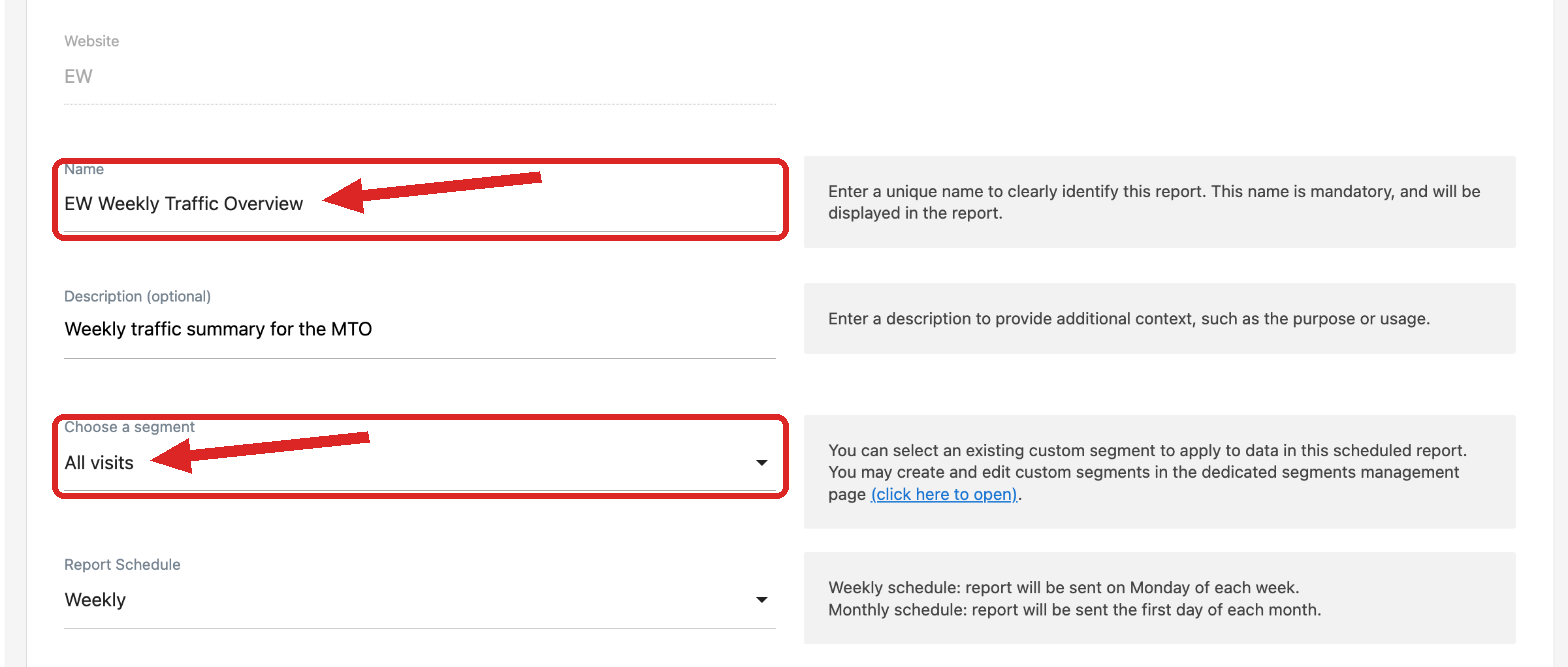
- Name the report Give the report a name that will make sense in your inbox, for example "EW Weekly Traffic Overview." The description is optional. Leave Choose a segment set to All visits unless you need a specific audience slice.
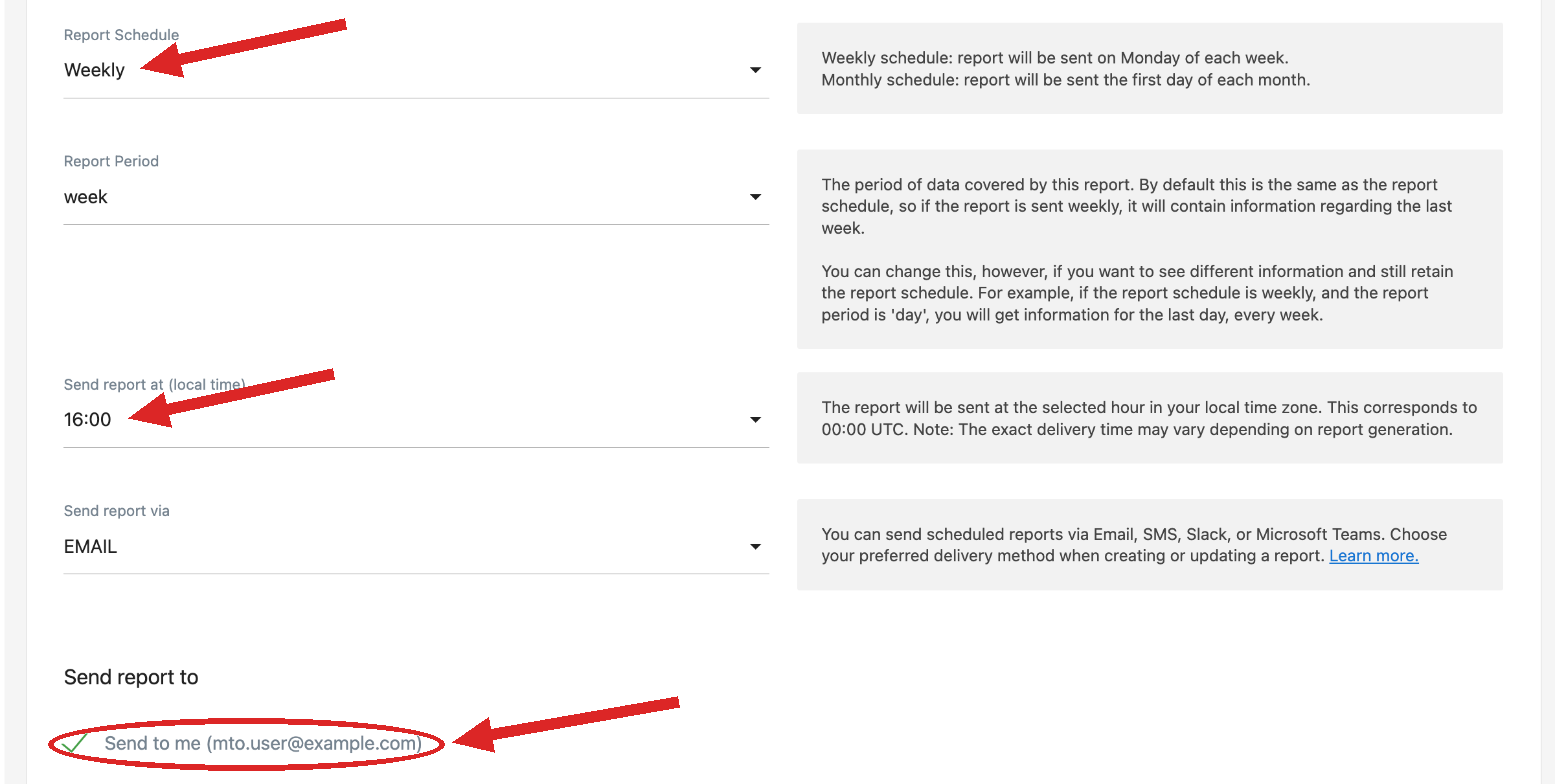
- Set the schedule and confirm it sends to you Choose how often the report is delivered and confirm the delivery settings:
- Report Schedule: Daily, Weekly, or Monthly. Weekly reports arrive on Monday; monthly reports arrive on the first of the month.
- Report Period: Leave this matched to the schedule (a weekly report covers the past week) unless you have a reason to change it.
- Send report at: Pick the local hour you want it in your inbox.
- Send report via: Leave set to EMAIL.
- Send to me: Make sure this box is checked. It sends the report to the email address on your Matomo account. The screenshot shows a placeholder address; you will see your own.
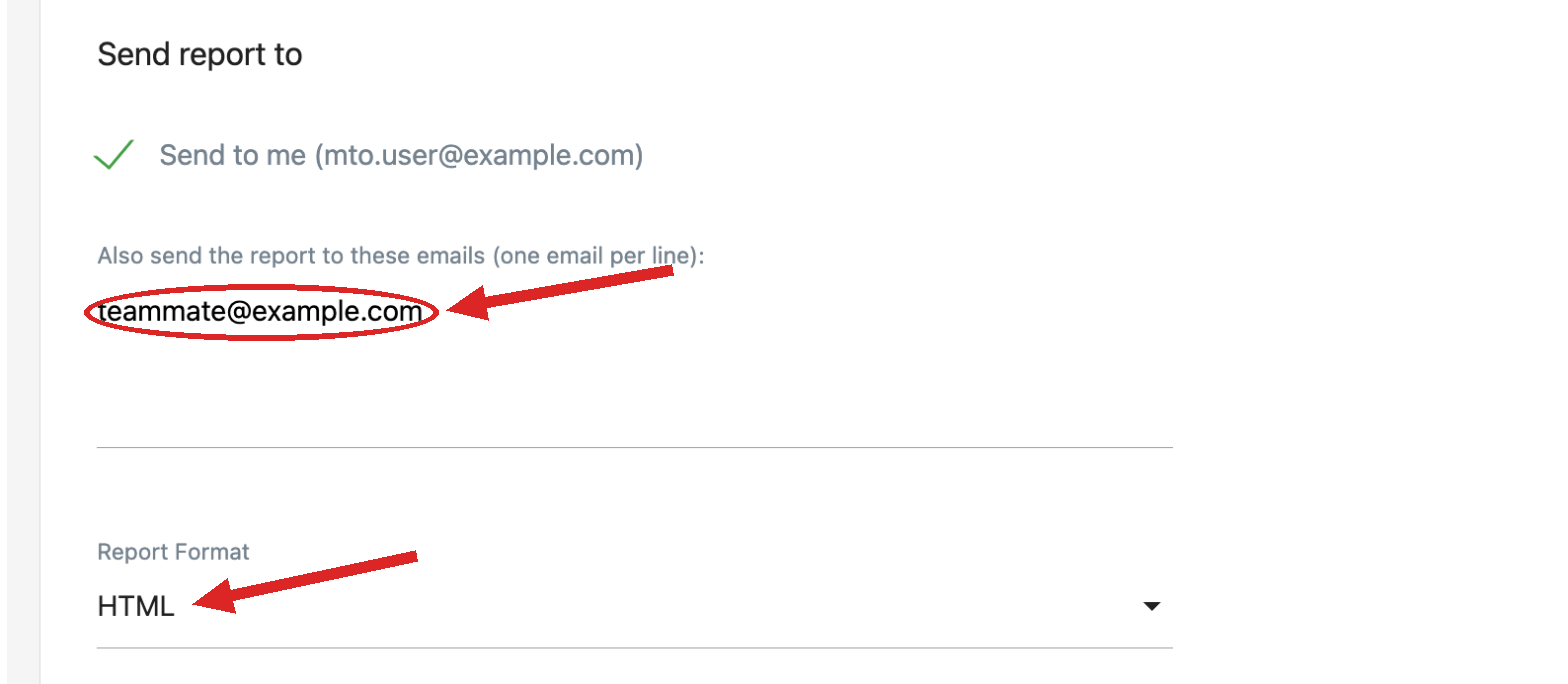
- Add recipients and choose the format If teammates should also receive the report, add their addresses (one per line) in the "Also send the report to these emails" box. Then pick a Report Format. HTML displays the charts directly in the email body and is the easiest to read.
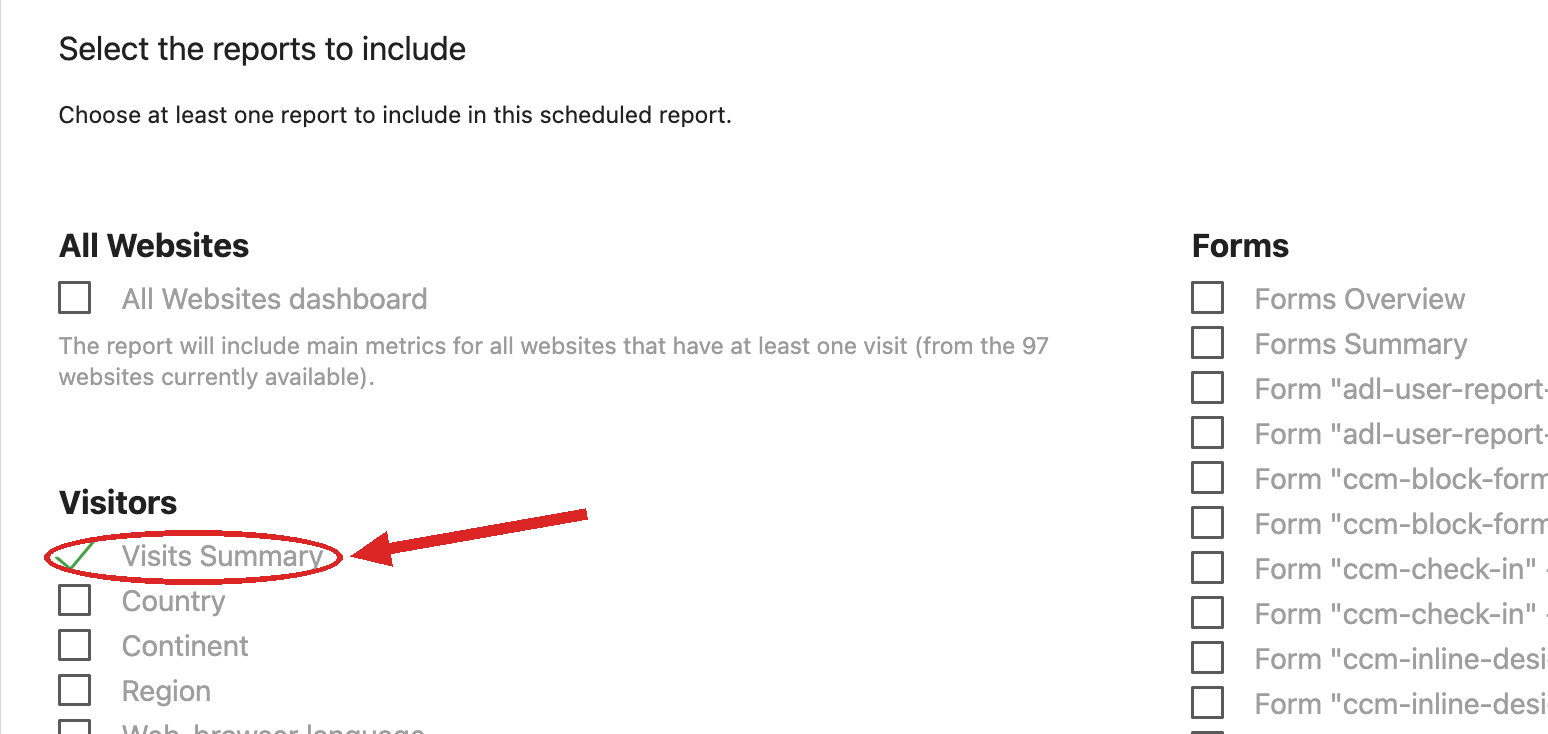
- Select the reports to include Check the boxes for the statistics you want in the email. You must select at least one.
- A good starter set for a traffic summary

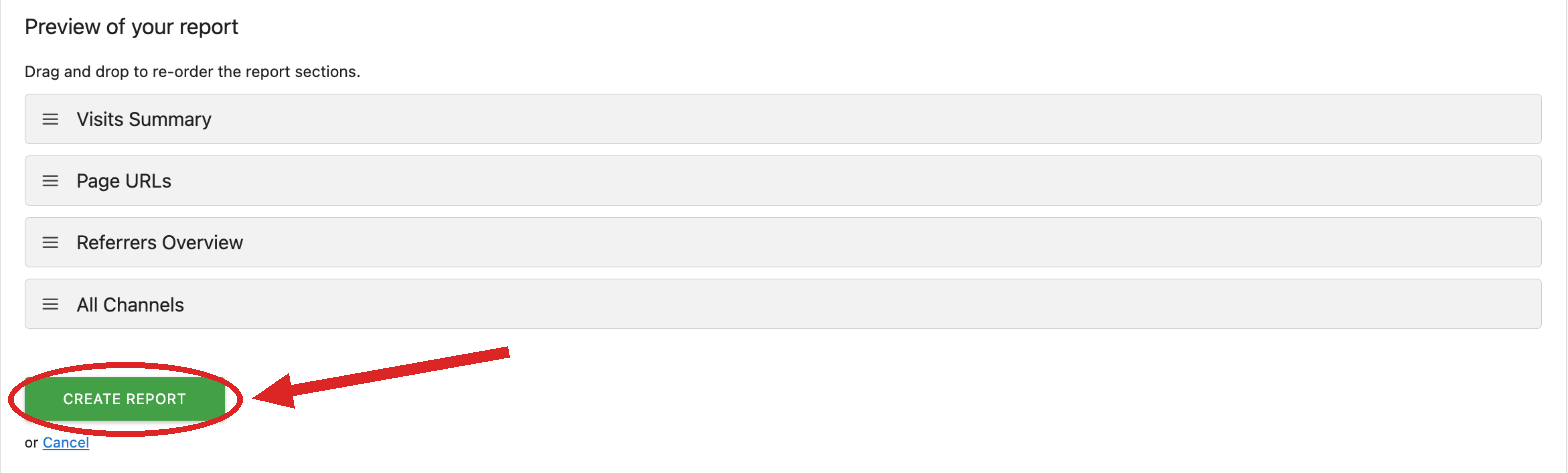
- Create the report Scroll to the bottom. The Preview of your report section lists the statistics you selected, and you can drag them to reorder. Click the green Create Report button. Your report now appears in the Personal Scheduled Reports list, where you can download a preview, send it now as a test, or edit or delete it later.
By following this guide, users will be able to:
- Receive Matomo analytics reports automatically by email on a daily, weekly, or monthly schedule, without logging in to pull the numbers yourself.
- Choose exactly which statistics appear in your report, such as overall traffic, top pages, and where visitors come from.
- hare the same report with teammates by adding their email addresses.
- Set the delivery time and the period of data each report covers.